
Read and reply
Follow a conversation in the panel and send a plain text reply, including Reply all.
A Chrome extension for Gmail
Read a conversation, send a reply, and sort your inbox in Chrome's side panel while your current page stays in view.
The store listing will open after the extension is published.
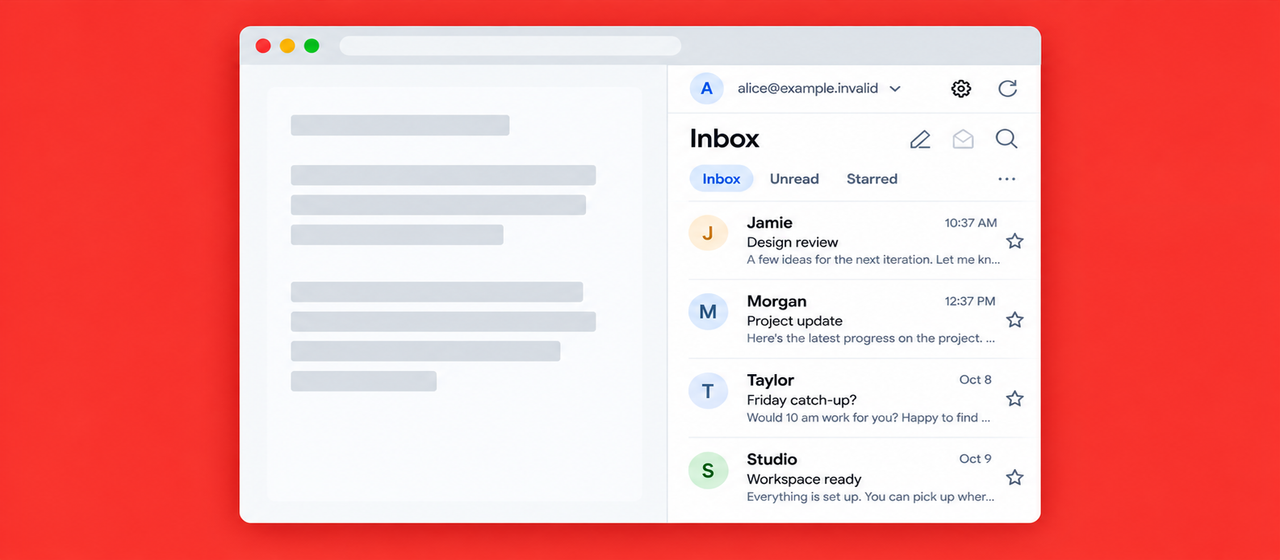
In the side panel
Your inbox stays within reach while you use the rest of Chrome.
Follow a conversation in the panel and send a plain text reply, including Reply all.
Search mail or open Inbox, Unread, Starred, Sent, Spam, and Trash. Filter by Gmail category when you want a narrower view.
Archive, move to Trash, mark as read or unread, star messages, and use your existing Gmail labels.
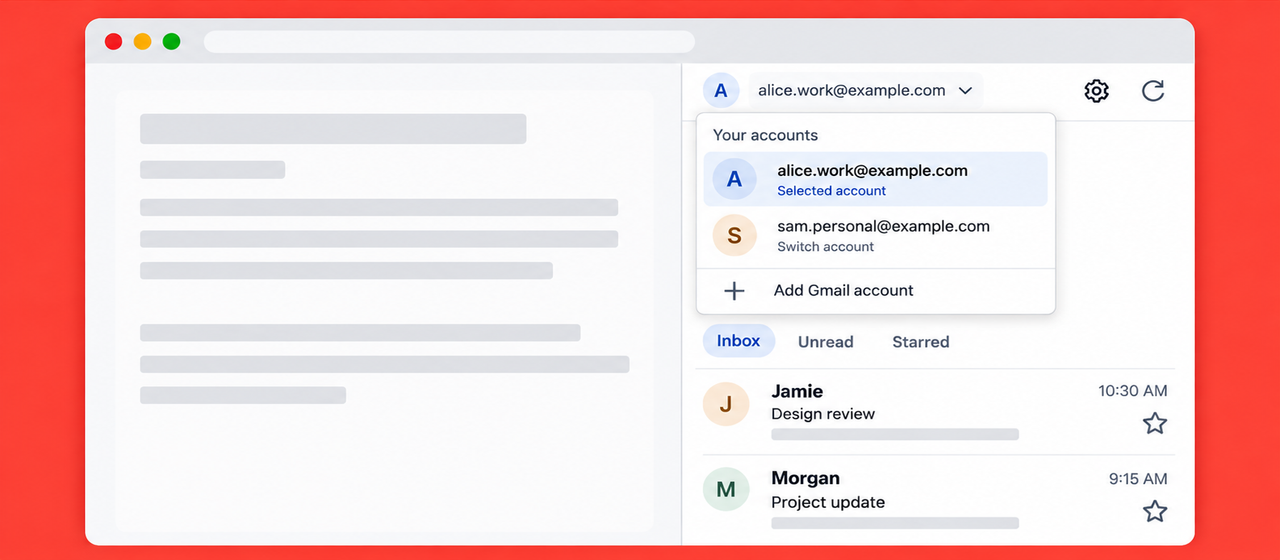
Several inboxes, one place
Connect more than one Gmail account through Google. Choose the one you need from the account menu at the top of the sidebar.
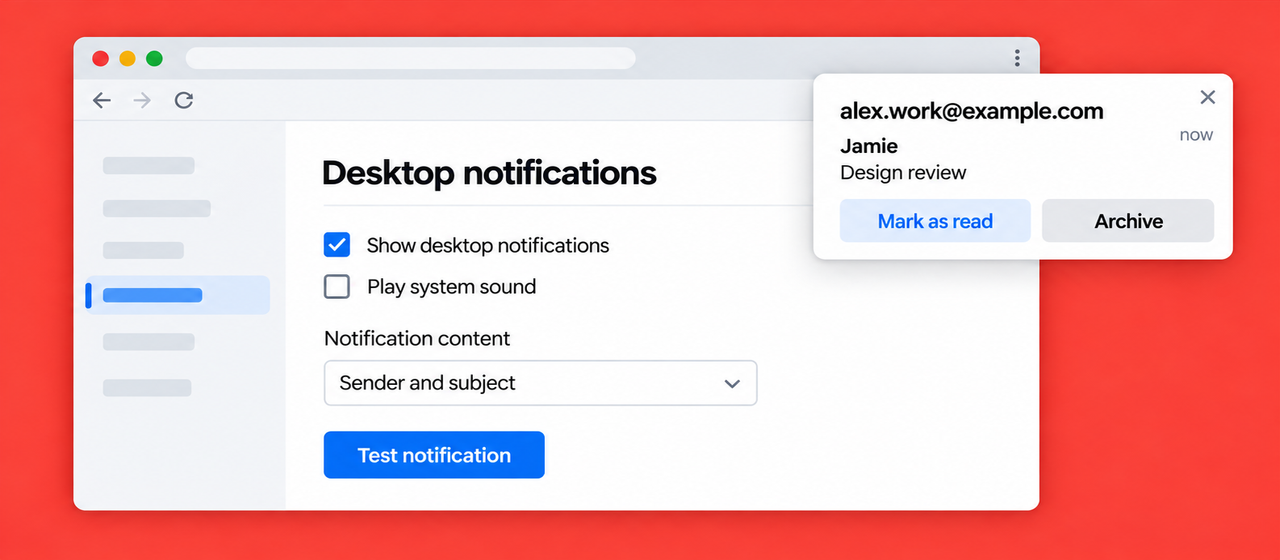
When the panel is closed
Turn on background checks for an unread count on the extension icon. Desktop notifications are optional and off by default.
Background checks need Chrome to be running and account access to remain available. Desktop alerts also depend on Chrome and system notification settings.
Getting started
Open its Chrome Web Store listing once it is published and add Email Sidebar to Chrome.
Open the side panel, choose an account, and approve access through Google.
Read, reply, and organize mail beside the page you're using.
Good to know
You can read mail in the side panel with Gmail tabs closed. For background checks, Chrome must stay open and your account access must be available.
Yes. Connect your accounts through Google and switch between them from the menu at the top of the panel.
You can reply and use Reply all in the panel. New messages open Gmail's composer in a tab or separate window. Forwarding continues in Gmail.
Email Sidebar is a Chrome extension for desktop browsing on macOS and Windows.
Email Sidebar for Gmail